
Feature 13 of 16 · Built
Gigs
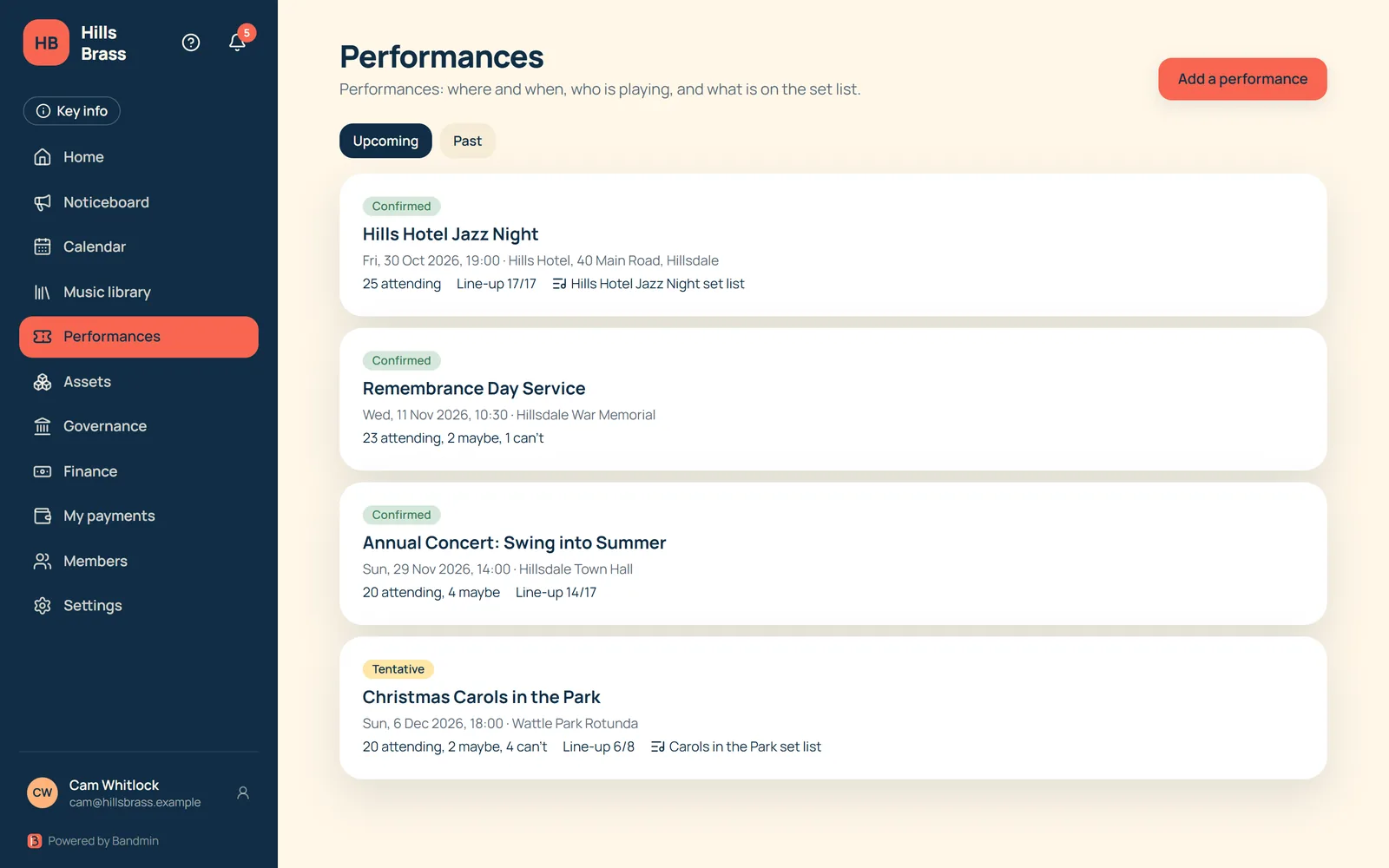
A gig is a calendar event with everything a performance needs on top.
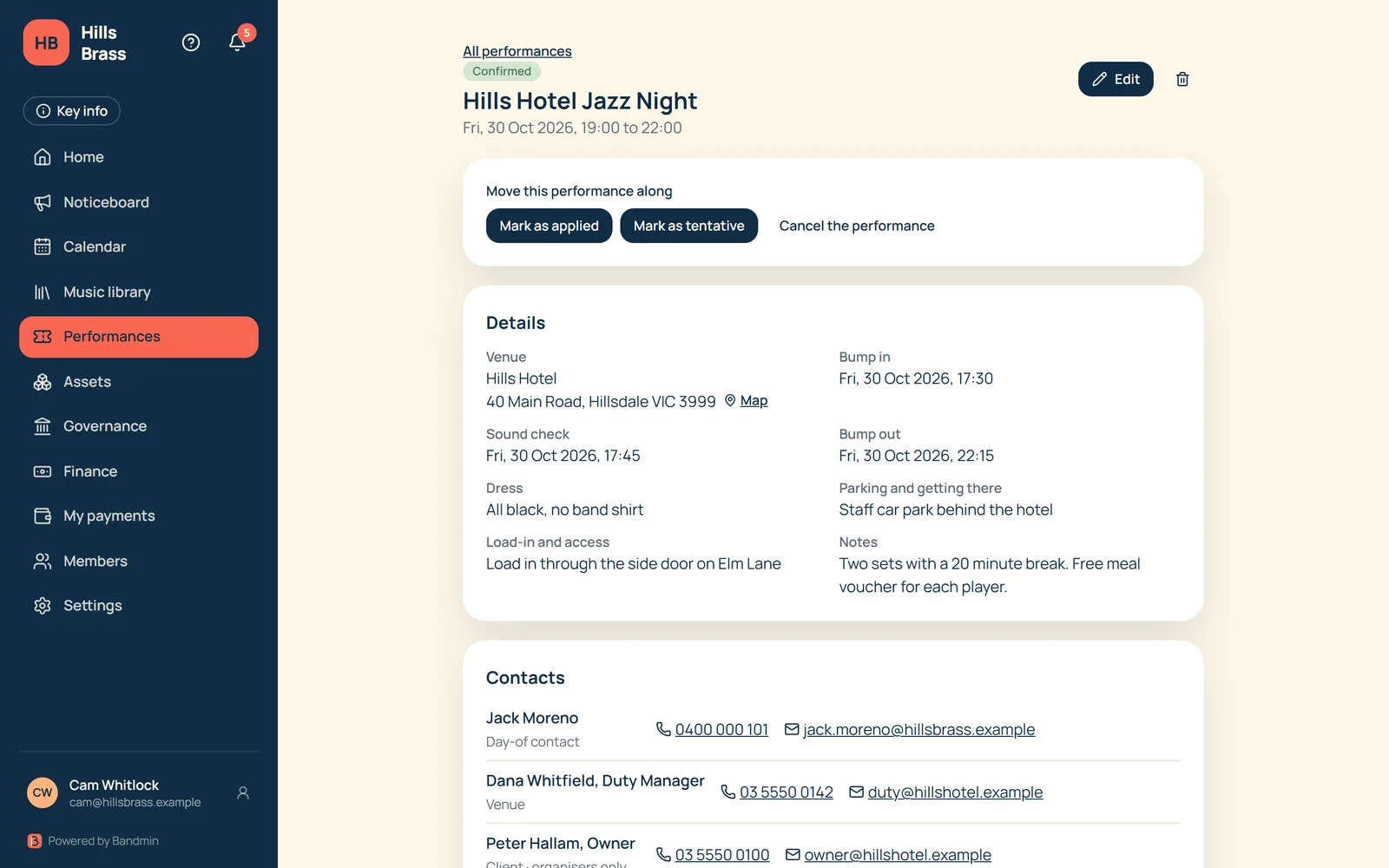
Gig details
- Status: Applied (organisers only), Tentative, Confirmed, Complete once it has passed, or Cancelled.
- Venue and address with a map link; bump in, sound check, bump out, dress, parking, and load-in and access.
- Notes for the band, plus private organiser notes and client details.
- Contacts (day-of, venue, operations, client), each with a switch for whether members can see them.
- Limit a gig to chosen groups.
Who is playing
- RSVPs with a reply-by date. “Ask everyone to RSVP” and “Chase those who haven’t answered” send the emails for you.
- The line-up planner sits right on the gig page.
Line-up at a glance
- Each instrument is a row of numbered places: green when filled, red once the reply-by date passes with places still open, and grey for reserves.
- “View full roster” shows who is on which instrument.
- Members pick the instrument; the bandleader says who is 1st, 2nd, 3rd.
Set lists
- A set list is a library folder for one gig. It refers to the physical folders the band carries, so the printed list says where each piece is (1, 5, E3) and nothing needs reprinting.
- Players download their own music in set order, as a PDF or a ZIP, or view it in the app in set order.
- Print the set list with a QR code. One QR code serves the whole band: each player who scans it and signs in sees their own instrument’s music, and is told if the set list changes.
- Or create a real physical folder from the set list.
Set list checks
- Tag each piece Instrumental or Vocal. This is optional, and you can switch it off in settings.
- Organisers see a red note wherever the line-up needs a part the library doesn’t have, such as “Trumpet 4 part not available”.
- A vocal piece with no vocal part is flagged too.
Want to hear when Bandmin is ready?
Leave your email and we’ll keep you posted.